nfltr orch: The Complete Tutorial
nfltr orch is the orchestration operator surface for hosted NFLTR at nfltr.xyz, and it has two faces. Typed with a group and a command — nfltr orch task status … — it is a scriptable CLI. Typed bare, it is an interactive operator console: a full-screen terminal app with live panes, a command bar, and keyboard shortcuts. Its own help calls it the primary operator loop. This guide documents both, end to end.
orch tui subcommandThe interactive console is bare nfltr orch. Anything after the word orch that is not a flag is read as a command group, so nfltr orch tui is an error, not a console. Give the console a group only when you want the one-shot CLI instead.
Every screenshot below is a real PTY capture of the shipped binary, not a mockup. They were taken against an isolated test fleet, so the relay address, worker name, and task ids you see in them belong to the capture rig rather than to your account.
1. Check readiness first
orch doctor is the one command to run before anything else. It checks the three things a run depends on — a coordinator CLI that is installed and authenticated, a worker backend, and relay reachability — and prints the next action:
$ nfltr orch doctor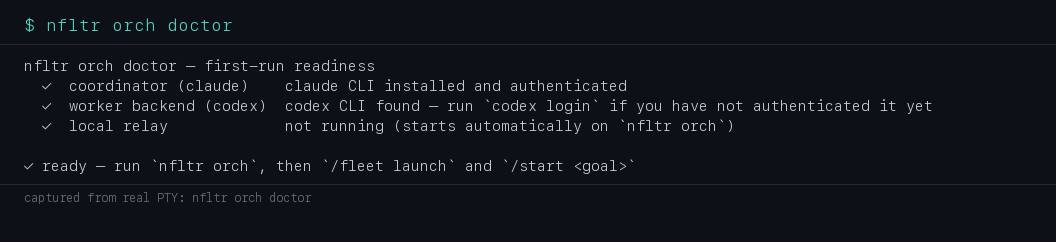
Captured with nfltr orch doctor. Add --json for CI, and --backend claude or --backend codex to check a specific worker backend.
2. Enter and leave the console
Open the console with no arguments. To open it already attached to a run, pass that run's id:
$ nfltr orch$ nfltr orch --task TASK_IDTo leave it, press Esc or Ctrl+C, or submit /quit (q, quit and exit work too). Leaving the console does not stop an orchestration — use /detach to make that explicit, and /cancel when you actually want the run to stop.
Two flags change what the console is before it starts:
--events N— how many timeline events to pull per refresh (default 20).--once— render a single frame and exit, instead of looping. Useful in scripts that only want the current picture.
Planner and coordinator choices are made at launch, not from inside:
$ nfltr orch --planner-cmd codex --planner-model MODEL --planner-effort EFFORT \
    --coordinator-provider PROVIDER --coordinator-model MODEL --coordinator-effort EFFORT
When stdin is not a terminal, the console falls back to a plain line-oriented reader instead of the full-screen renderer, so echo "/fleet workers" | nfltr orch behaves sensibly in a pipeline. For a repeatable sequence, use script mode: --script FILE runs newline-delimited console commands from a file (or - for stdin) and exits; blank lines and lines starting with # are ignored.
3. What the console shows you
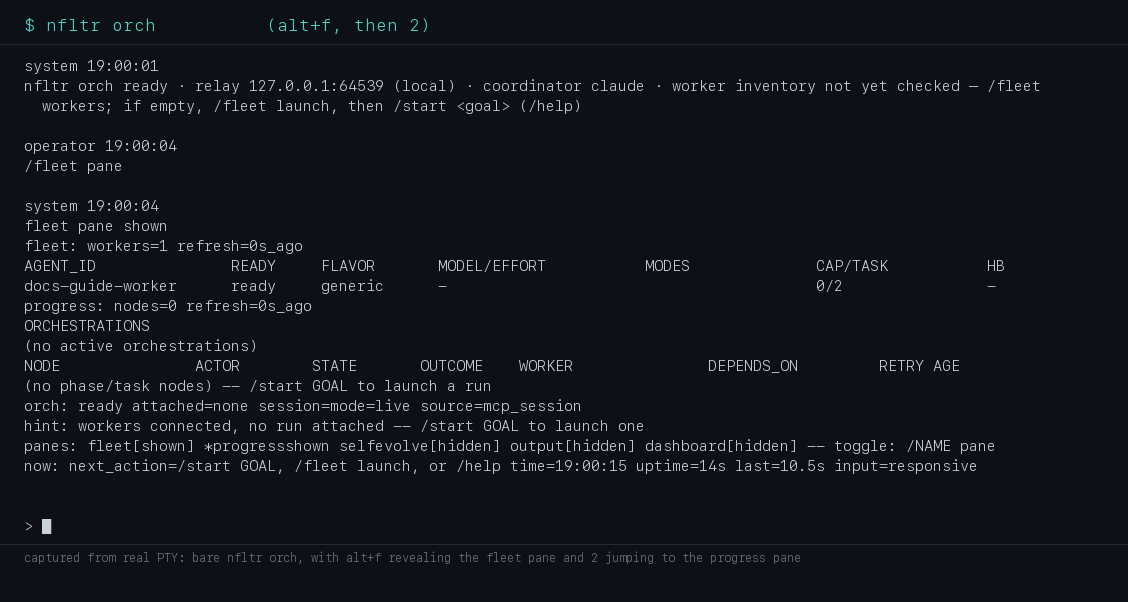
Captured with nfltr orch, then Alt+F to reveal the fleet pane and 2 to jump to the progress pane.
The frame is built from the bottom up. Reading upward from the prompt:
| Line | What it tells you |
|---|---|
> command bar | Where you type. Plain English goes to the coordinator; a leading / runs a console command. |
now: | The single most useful next action right now, plus the clock, uptime, and whether input is still responsive while a command runs. |
panes: | All five toggleable panes and whether each is shown or hidden. The focused pane is marked with a leading *. |
hint: | A persistent, state-aware guidance line: launch a fleet, start a goal, or (with a run attached) watch and steer it. |
orch: | Status header — lifecycle word, attached= the run you are on, session mode, and a work pulse while something is moving. |
| transcript | Everything that has happened in this session: your submissions, command output, system acknowledgements, and live lifecycle events. |
Depending on state, extra status lines appear between those: events: (live event counts by type), relay: (event-refresh health and latency), coord: (coordinator readiness), latency:, scroll:, and an issue:/alert: line when something needs you. On a short terminal the lower-priority ones yield so the prompt and the hint line always survive.
The five panes
Panes are hidden by default. Each has a uniform toggle command, /NAME pane, and refreshes on the console's own clock while it is visible — no separate polling to manage.
| Pane | Toggle | What it shows |
|---|---|---|
| fleet | /fleet pane | Every connected worker: readiness, flavor, model/effort, task modes, capacity in use, heartbeat. |
| progress | /progress pane | Active orchestration roots, then the attached root's phase/task nodes with actor, state, outcome, worker, dependencies, retries and age. |
| selfevolve | /selfevolve pane | The coordinator-owned improvement controller and campaign lifecycle (see controller and campaign below). |
| output | /output pane | A bounded raw-output tail per currently active task, newest lines last. |
| dashboard | /dashboard pane | Fleet and orchestrations together — every connected worker and every active root, not just the attached one. |
Two commands change what the panes are pointed at: /fleet select AGENT_ID focuses one worker, so the output pane tails that worker's active task, and /progress select ROOT_ID switches the progress pane to a different orchestration root.
The command bar
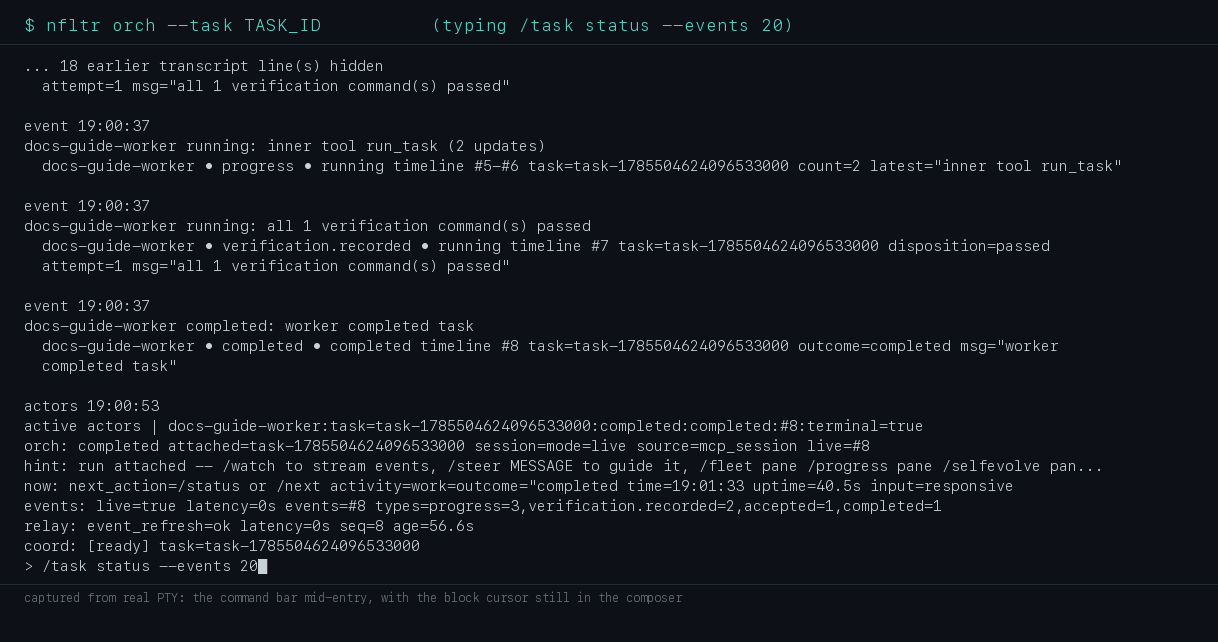
Captured with nfltr orch --task TASK_ID, typing /task status --events 20 and stopping before Enter.
The bar takes three kinds of input:
- Plain English. Anything without a leading slash goes to the coordinator, which starts a goal, answers from the timeline, or steers live work.
- Console commands. A leading
/runs one of the commands in/help— most mirror anorchgroup, so/task status --events 20is the same work asnfltr orch task status --task … --events 20against the attached run. - Multi-line text.
Ctrl+J,Alt+EnterorShift+Enterinserts a newline instead of submitting — useful for a long steer message.
The bar stays live while a command runs. Submitting another line queues it as a follow-up rather than interleaving output, and the now: line then shows the queued command and reminds you that Ctrl+G cancels. When the console has suggestions for your current situation, a shortcuts: line offers the first three under Alt+1…3 with Tab to cycle the rest.
Help without leaving the console
Press ? on an empty command bar (or submit /help) for the grouped overlay: getting started, fleet, run, panes, intervene.
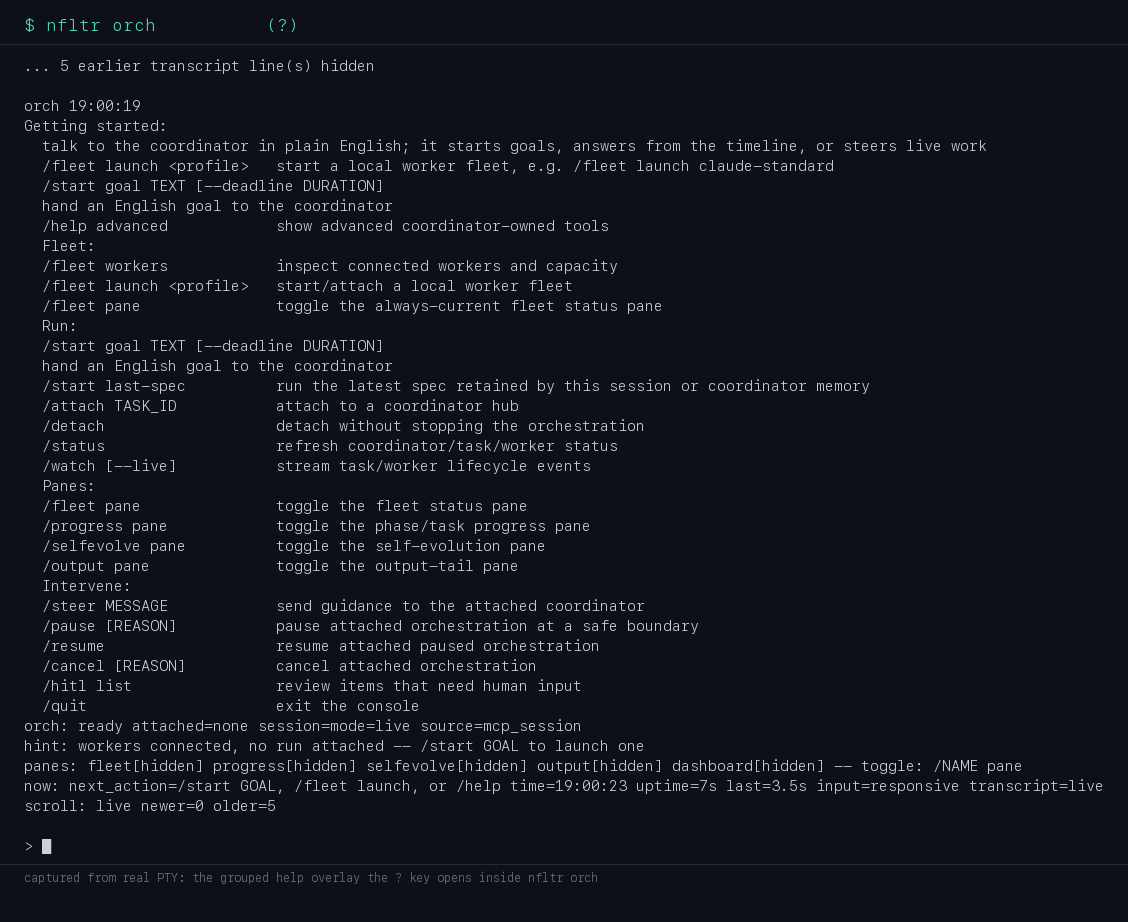
Captured with nfltr orch, then pressing ?. /help advanced adds the coordinator-owned tools — /spec, /queue, /events, /tick, /loop, /daemon, /admin, /skills, /artifact and more.
Watching a run from inside
With a run attached, the console tails its lifecycle events into the transcript by itself. Alt+W runs a bounded watch on demand, and /watch --live keeps a continuous stream open. Open the progress and output panes at the same time and you can see the graph, the per-task tail, and the event stream in one frame:
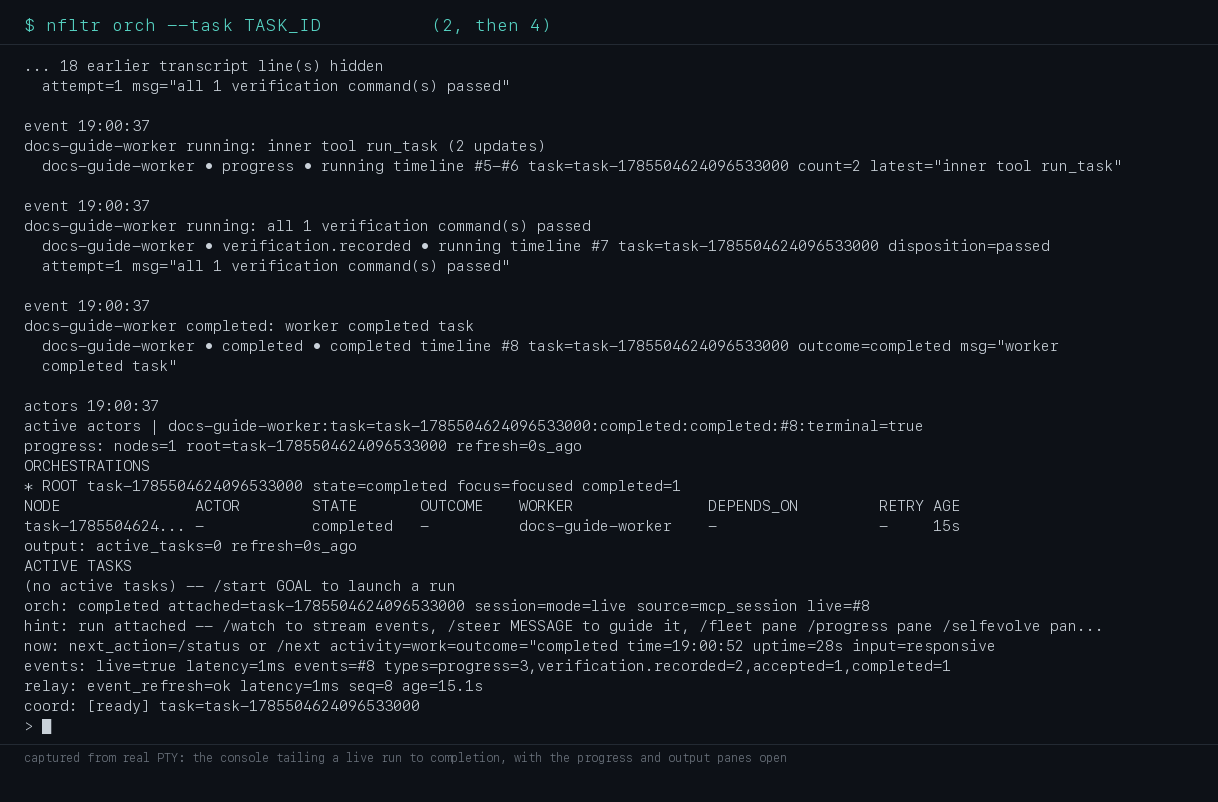
Captured with nfltr orch --task TASK_ID, then 2 and 4 to open the progress and output panes while the run completed.
Intervening from inside
Everything you would do from the CLI has a console equivalent that already knows which run you are attached to:
| You want to… | Console command |
|---|---|
| Guide the coordinator mid-run | /steer MESSAGE (or /ask MESSAGE to ask rather than direct) |
| Hold at a safe boundary, then continue | /pause [REASON] then /resume |
| Stop the run | /cancel [REASON] |
| Answer a human-intervention item | /hitl list, then /task answer --task TASK_ID --message "…" |
| Retry or move a failed task | /task retry …, /task reroute … |
| Kill the command you just started | Ctrl+G |
| Walk away without stopping anything | /detach, then Esc |
When the coordinator raises a question, the console surfaces it as an attention signal on the now: line and points you at /hitl or /task answer rather than blocking silently.
4. Keyboard shortcuts
Every binding below was read off the shipped console. Two keys people expect are deliberately absent: / is not bound to anything — it is simply the first character of a console command — and q alone does nothing, because quitting by word requires submitting q with Enter.
Navigation
| Key | Does | Applies when |
|---|---|---|
Tab | Move pane focus forward through the currently visible panes | Command bar empty |
Shift+Tab | Move pane focus backward | Command bar empty |
1 2 3 4 | Focus the fleet / progress / selfevolve / output pane, revealing it if hidden | Command bar empty |
Page Up / Page Down | Scroll the transcript back / forward one page | Always |
Ctrl+Page Up | Scroll to the oldest retained transcript line | Always |
Ctrl+Page Down | Jump back to the live tail | Always |
Editing the command bar
| Key | Does | Applies when |
|---|---|---|
← / → | Move the cursor one character | Always |
Ctrl+A | Jump to the very start of the input | Always |
Ctrl+E | Jump to the very end of the input | Always |
Home / End | Jump to the start / end of the current line — the same as Ctrl+A/Ctrl+E on single-line input | Always |
Backspace or Ctrl+H | Delete the character before the cursor | Always |
Delete | Delete the character at the cursor | Always |
↑ / ↓ | Move between lines of a multi-line entry; past the first or last line, step back or forward through command history | Always |
Ctrl+J, Alt+Enter, Shift+Enter | Insert a newline instead of submitting | Always |
Tab / Shift+Tab | Cycle forward / backward through suggested commands, filtered by what you have already typed | Command bar not empty |
Ctrl+L | Clear the transcript and the command bar | Always |
Enter | Submit the line; while a command is running, queue it as a follow-up instead | Always |
Run control
| Key | Runs | Applies when |
|---|---|---|
Ctrl+R | /status — refresh coordinator, task and worker state | Always |
Ctrl+N | /next — run the latest recommended follow-up | Always |
Ctrl+O | /overview — active tasks and worker capacity | Always |
Alt+O | /overview workers | Always |
Alt+F | /fleet pane — toggle the fleet pane | Always |
Alt+W | A bounded watch: /watch --max-events 20 --timeout 5s | A run is attached |
Alt+S | /task status --events 20 for the attached run | A run is attached |
Alt+1…Alt+9, Alt+0 | Run the 1st–10th suggested command. Suggestions that need words from you — /task answer, /task reject — load into the bar as an editable draft instead of running | Suggestions exist |
Ctrl+G | Cancel the command that is running; with nothing running, drop the queued follow-up | Always |
Help and exit
| Key | Does | Applies when |
|---|---|---|
? | Open the grouped help overlay (/help) | Command bar empty |
Esc or Ctrl+C | Leave the console. The orchestration keeps running | Always |
5. Command reference
Outside the console, nfltr orch is organised into groups. nfltr orch --help lists them all; nfltr orch GROUP --help prints that group's shapes, and nfltr orch GROUP COMMAND --help prints every flag.
$ nfltr orch --help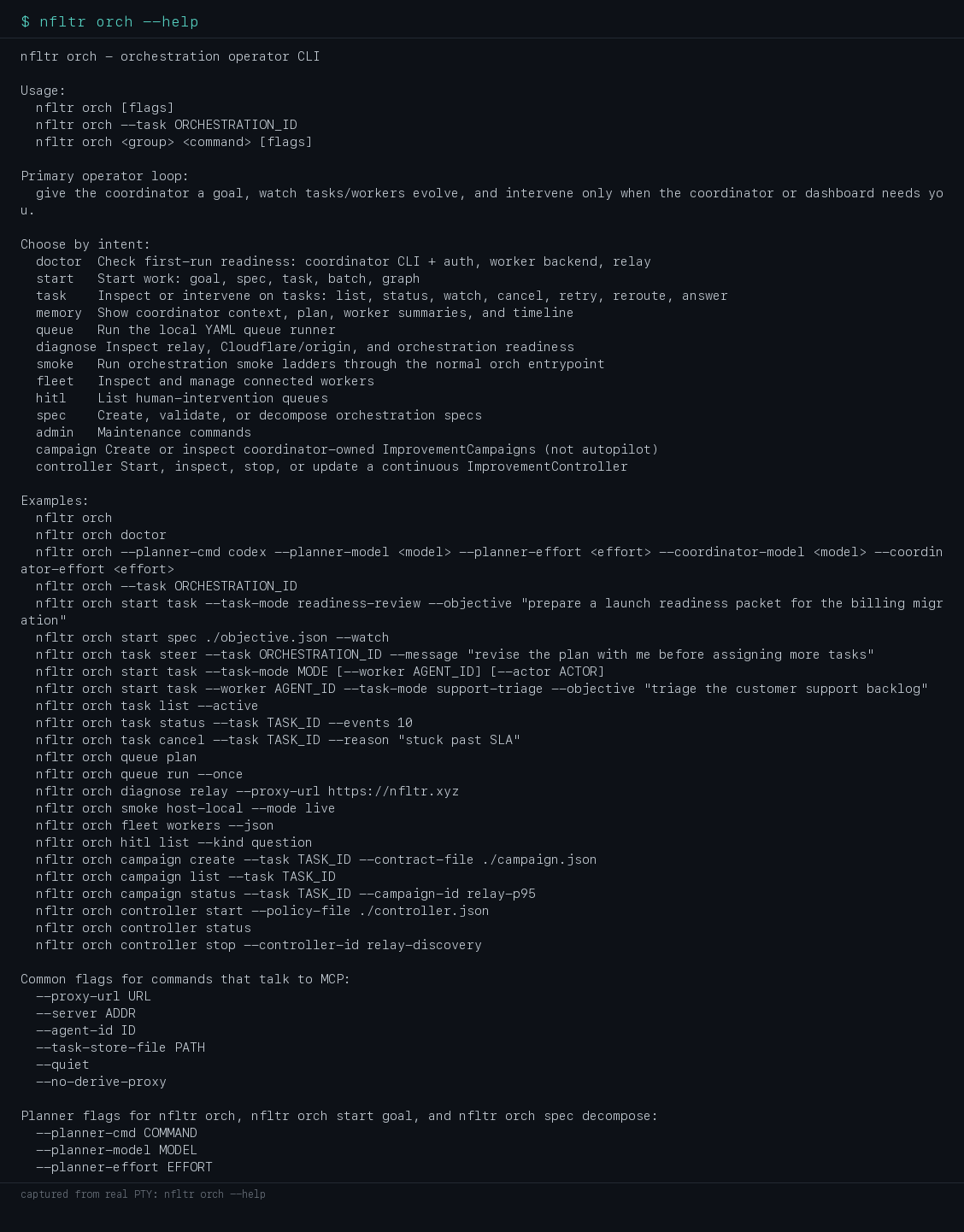
doctor — first-run readiness
$ nfltr orch doctor --backend claude --json--backend codex|claude picks which worker backend to check; --json emits the checklist for CI.
start — start work
Five ways in, from most to least English:
$ nfltr orch start goal "Confirm the on-call workstation is ready to run orchestration tasks" --watch$ nfltr orch start spec ./onboarding-check.json --watch$ nfltr orch start task --task-mode implement --worker WORKER_ID --objective "Stabilize the widget cache test" --watch$ nfltr orch start batch ./two-slices.json --batch-id docs-fanout --watch$ nfltr orch start graph run --manifest ./work-graph.jsonstart last-spec re-runs the most recent spec this session or coordinator memory retained. Flags worth knowing:
--watchtails lifecycle events until the graph is terminal;--dry-runvalidates and renders the dispatch plan without dispatching;--detachforks a child, prints the orchestration id, and returns.--worktreeruns the work on an isolated branch;--branch NAMEand--base-ref REFcontrol it, and--keep-worktree-on-failure(on by default) preserves it for inspection.--objective-file FILEand--goal-file FILEread long instructions from disk instead of the shell.--task-mode MODEis required forstart task;--worker AGENT_IDpins a worker,--actor ACTORis descriptive metadata, and--idempotency-key KEYmakes a retry safe.--timeout-ms,--hard-timeout-msand--acceptance-lapse-msbound how long a dispatch may live;--require-approvalwith--approval-reasonmakes a human confirm before work continues.--graph evalpreflights a work-graph manifest instead of running it.
task — inspect and intervene
$ nfltr orch task list --active$ nfltr orch task status --task TASK_ID --events 20$ nfltr orch task watch --task TASK_ID$ nfltr orch task result --task TASK_ID| Command | For | Flags that matter |
|---|---|---|
list | Find the task you mean | --active, --state or the --completed/--failed/--cancelled shortcuts, --filter key=val (repeatable), --batch, --mine, --max-age, --limit, --stalled, --sort-by age|priority|state, --format wide|short, and --output text|json|csv|jsonl |
status | One task's current state, result and gate | --task (required), --events N, --watch with --poll-interval/--timeout, --result-max-bytes |
watch | Live lifecycle event stream | --task or --all-tasks, --filter REGEX, --max-events N, --since-event-id to resume, --quiet |
wait / result / diff | Block until terminal; print just the structured result; show the produced diff | --task or --tasks T1,T2,… |
cancel | Stop work | --task, --tasks, --batch, --all-stalled, --code, --reason |
retry / reroute | Re-dispatch a failed task, optionally elsewhere | --task (required), --worker (retry only), --bump-priority, --timeout-ms |
pause / resume / unpause | Hold and release a task | --task |
steer | Send guidance mid-run | --task, --message |
answer / approve / reject / review | Resolve a human-intervention item or a setup gate | --task (required), --message, --approve/--reject, --reason |
events / audit | Full event history and audit trail | --task |
children aggregate | Roll child results up to a parent | --parent TASK_ID |
artifact list|get|preview|apply|fulfill | Work with files a task produced or asked for | --artifact-id, --output-file, --check/--yes, --content-file, --file, --dir |
Most of these also accept --json for scripting. task list is the exception — it takes --output text|json|csv|jsonl instead.
memory — what the coordinator knows
$ nfltr orch memory --task TASK_ID --limit 50Prints the coordinator's context, plan, worker summaries and learning trail for one orchestration. --json for the raw record.
queue — the local YAML queue runner
$ nfltr orch queue init$ nfltr orch queue validate --workflow ./workflow.yaml$ nfltr orch queue plan$ nfltr orch queue run --onceinit scaffolds the files, validate checks them, plan shows what would run, run executes (--once for a single pass), and status reports where the runner got to. --workflow, --queue and --state-dir point at non-default paths.
diagnose — is the path healthy?
$ nfltr orch diagnose relay --proxy-url https://nfltr.xyzChecks relay, edge/origin and orchestration readiness in one pass. --origin-url and --json are the other flags you will use.
fleet — the workers
$ nfltr orch fleet status
| Command | For |
|---|---|
fleet status | One line per worker: capacity, active tasks, heartbeat |
fleet workers [--flavor F] [--worker ID] | Full worker records including labels and advertised task modes |
fleet ping [--workers CSV] [--strict] | Liveness check: is the control plane answering, and are the workers you named connected? |
fleet top [--refresh-interval 2s] | A live, refreshing capacity view |
fleet preflight [--flavor codex] [--worker ID] | Run readiness checks against connected workers before you dispatch to them |
fleet launch [PROFILE] [--dry-run] | Bring up a local worker fleet from a named profile — claude-standard, claude-worktree, claude-lite, mixed-frontier, codex-standard, codex-worktree, cursor-standard |
fleet stop --manifest FILE | Tear down a fleet you launched |
fleet drain / undrain / restart-stale / wait / drift / upgrade | Day-two maintenance on a running fleet |
Add --json to any of them for machine-readable output.
hitl — what is waiting on a human
$ nfltr orch hitl list --kind question--kind approval|question|escalation|review|exception narrows the queue, --worker filters by worker, and --limit caps the rows. Resolve entries with orch task answer, approve or reject.
spec — author and check objectives before dispatch
$ nfltr orch spec template --name single-task$ nfltr orch spec validate ./onboarding-check.json$ nfltr orch spec decompose --goal "Confirm the on-call workstation is ready to run orchestration tasks"template emits a starter spec — valid names are generic, research, single-task, multi-task and pipeline. validate checks shape and references without talking to a worker (--workers, --require-worktree), and decompose asks the planner to turn plain English into spec JSON (--workers, --dry-run, --json).
smoke — the readiness ladder
$ nfltr orch smoke host-local --mode live--mode mixed|live|dry-run chooses how much really executes; --leg NAME runs one rung of the ladder.
admin — maintenance
$ nfltr orch admin task-store stats$ nfltr orch admin task-store vacuum --max-events 200 --dry-runAlso admin cleanup --base-dir DIR --worktrees (dry-run unless you add --yes), admin prune-state --older-than DUR, and admin preauthorize-origin-write / admin preauthorizations for workspaces that may write to their origin.
campaign — bounded, coordinator-owned improvement contracts
$ nfltr orch campaign create --task TASK_ID --contract-file ./campaign.json$ nfltr orch campaign list --task TASK_ID$ nfltr orch campaign status --task TASK_ID --campaign-id relay-p95$ nfltr orch campaign story --task TASK_ID --campaign-id relay-p95$ nfltr orch campaign ready --task TASK_ID --scope relay$ nfltr orch campaign signals --scope relay$ nfltr orch campaign validate --contract-file ./campaign.jsonA campaign records a scoped improvement contract — objective, immutable intent, allowed scopes, rollback checkpoint, budget, promotion rule, metrics — against an existing task. list, status, story, ready, signals, and validate are read-only. campaign story projects Intent / Path / Outcome — see Why did this campaign promote or roll back?. Preflight helpers live in Campaign operator tools. campaign admission set --max-concurrent N caps how many candidate slots may be in flight across every campaign at once; campaign admission status reads it back.
controller — keep campaigns coming
$ nfltr orch controller start --policy-file ./controller.json$ nfltr orch controller status$ nfltr orch controller update --controller-id relay-discovery --cadence 6h$ nfltr orch controller stop --controller-id relay-discoveryA controller holds a durable policy — allowed scopes, intent template, budget and promotion templates, cadence — and creates campaigns from it on a schedule. The policy is immutable after creation; update only changes lifecycle fields (--enabled, --status, --cadence). Omit --controller-id on status to list them all.
--proxy-url URL, --server ADDR, --api-key KEY, --agent-id ID, --task-store-file PATH, --quiet, --silent and --no-derive-proxy work across the commands that talk to the control plane. The task store defaults to a shared path so start task in one shell and task status in another see the same run.
6. Workflows
From nothing to a first result
$ nfltr orch doctor$ nfltr orch fleet statusNo workers? Start one on the machine that should do the work, with the labels your objective will target:
$ nfltr worker --labels nfltr.supports_task_mode.implement=true,nfltr.worker.tool=run_task,pool=dev \
    --mcp-command "nfltr claude-mcp --cwd ~/project --task-mode \${TASK_MODE}"
Or bring up a whole local fleet from a named profile, previewing it first:
$ nfltr orch fleet launch claude-standard --dry-run$ nfltr orch fleet launch claude-standardConfirm capacity, then dispatch:
$ nfltr orch fleet status$ nfltr orch start goal "Confirm the on-call workstation is ready to run orchestration tasks" --watchStart from a spec instead of a goal
A spec is one or more phases, each with a task_mode, a worker_label to target, and plain-English instructions. Draft, check, then run it:
$ nfltr orch spec template --name single-task > ./onboarding-check.json$ nfltr orch spec validate ./onboarding-check.json$ nfltr orch start spec ./onboarding-check.json --dry-run$ nfltr orch start spec ./onboarding-check.json --watch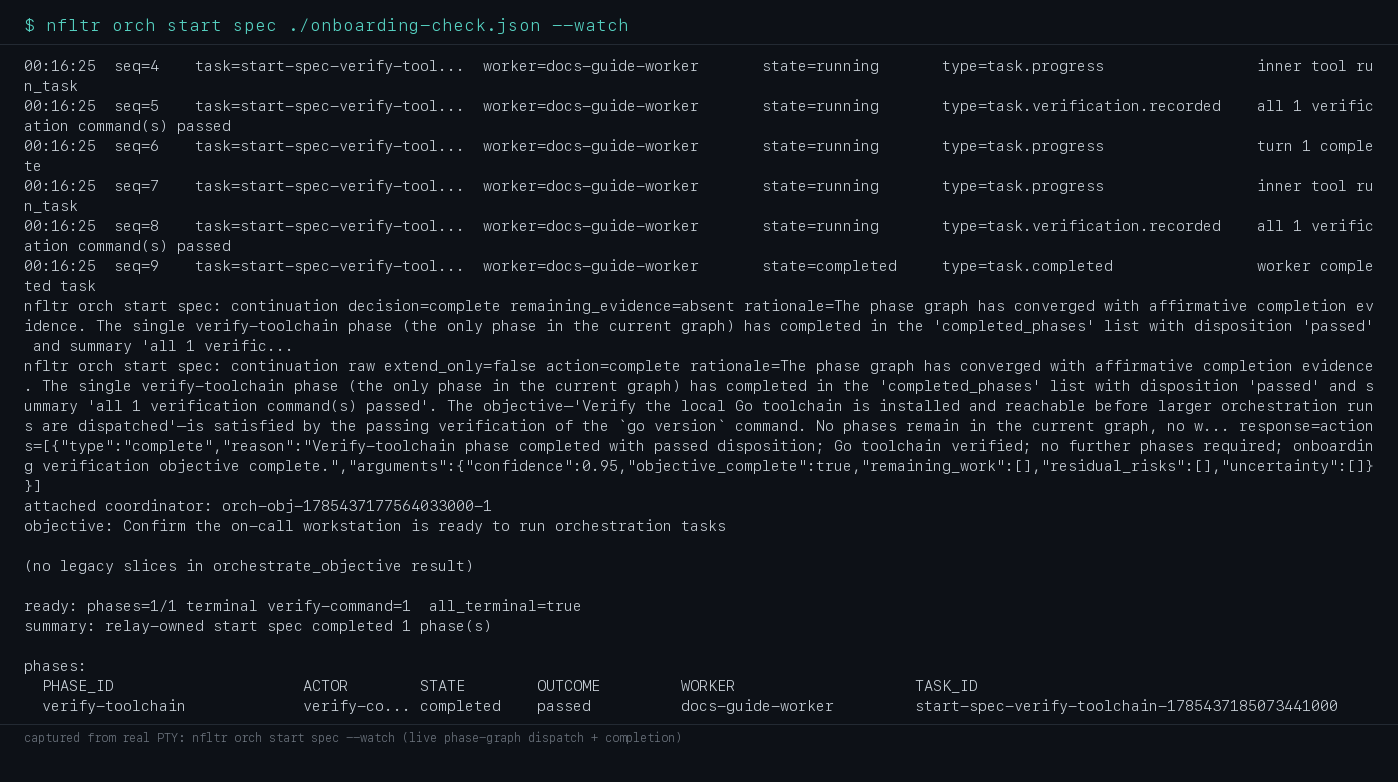
Captured with nfltr orch start spec ./onboarding-check.json --watch. Prefer plain English? nfltr orch spec decompose --goal "…" drafts the phase graph for you, and its output pipes straight into nfltr orch start spec - --watch.
Watch it
Three levels of detail, cheapest first:
$ nfltr orch task status --task TASK_ID --events 20$ nfltr orch task watch --task TASK_ID$ nfltr orch --task TASK_IDThe last one opens the console attached to that run: the transcript tails events for you, 2 opens the progress pane, and 4 opens the per-task output tail. For a wide view across several runs at once, the same events mirror onto the Causal Operations Atlas at nfltr.xyz/dashboard (attention rail, causal canvas, task drawer, Trace Lab) — see the Dashboard walkthrough.
Inspect one task
$ nfltr orch task list --active$ nfltr orch task status --task TASK_ID --events 20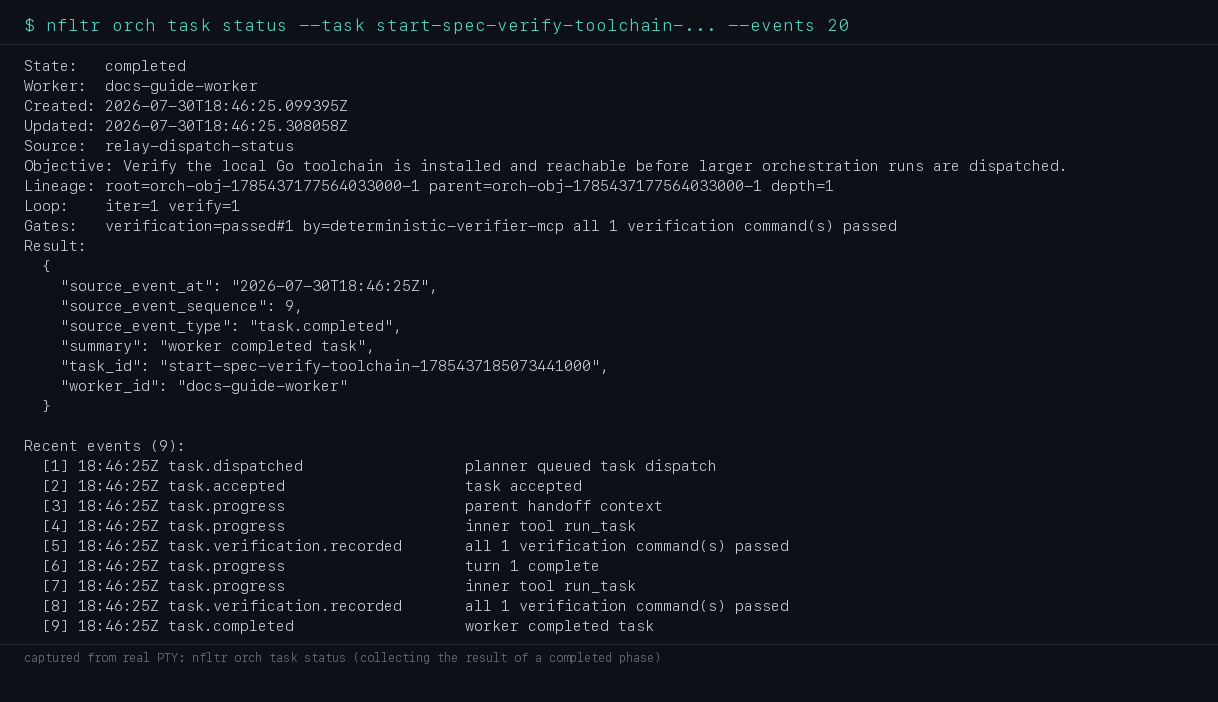
Captured with nfltr orch task status --task TASK_ID --events 20. For the artifacts a task produced, use nfltr orch task artifact list --task TASK_ID.
Answer a human-intervention question
When a phase needs a decision it lands in the HITL queue rather than blocking silently:
$ nfltr orch hitl list --kind question$ nfltr orch task answer --task TASK_ID --message "proceed with the default pool"Setup gates and risky mutations are approvals rather than questions:
$ nfltr orch task approve --task TASK_ID --reason "verified evidence looks correct"$ nfltr orch task reject --task TASK_ID --reason "verification evidence is incomplete"Cancel or retry
$ nfltr orch task cancel --task TASK_ID --reason "stuck past SLA"$ nfltr orch task retry --task TASK_ID --bump-priority$ nfltr orch task reroute --task TASK_IDretry re-dispatches, preferring a worker other than the one that failed unless you pin --worker. reroute always sends it elsewhere. To clear a whole stuck fan-out at once:
$ nfltr orch task cancel --batch BATCH_ID --reason "superseded"Read the result
$ nfltr orch task wait --task TASK_ID$ nfltr orch task result --task TASK_ID$ nfltr orch memory --task TASK_IDwait blocks until the task is terminal, result prints just the structured result body with no event history, and memory shows the reasoning trail behind it.
Next
For a screenshot walkthrough of the same run on the dashboard, read nfltr orch: A Visual User Guide. For inner-LLM turn detail and tool calls, read Observe orchestration. For fan-out patterns across several workers, see Multi-agent orchestration. When something goes wrong, Troubleshooting is organised by symptom.